10 Efficient Solutions to Fix OBS Studio Not Recording Audio

With OBS Studio's features, this tool is definitely an outstanding recording option, until the OBS audio not recording issue starts making everyone question whether it is still the best one out there. You dedicate a lot of time to recording audio content only to find out that it wasn't captured after the whole process. It is definitely a headache. Don't worry! This post features ten effective ways you can use to fix no audio in OBS issue. Try each one to see which works for you.
Guide List
Identify Which Audio Is Missing in OBS Recording 10 Ways to Fix OBS Not Recording Audio Use OBS Alternative for Easier and Smoother RecordingIdentify Which Audio Is Missing in OBS Recording
Before jumping in and trying each of this post's 10 simple ways to fix the audio not inactive in OBS issue, you first need to figure out which audio is missing from your recording. This will help you find the right solution to use later.
- • No audio at all - The recording has no sound, including both your microphone and desktop audio.
- • The microphone works, but desktop or game audio is missing - Your voice is recorded, but you can't hear the sound from your computer or other apps.
- • Desktop audio works, but the microphone is missing - You can hear the computer's sound, but your voice wasn't recorded.
- • You heard the audio live while recording, but it's missing in the saved file - Everything sounded fine during the recording, but the exported video has no audio or is missing some sounds.
- • The audio was fine yesterday, but broken today with no settings change - OBS was recording audio correctly before, but it stopped working even though you didn't intentionally change any OBS recording settings.
10 Ways to Fix OBS Not Recording Audio
If you have identified which audio is missing from your OBS recordings, you can now start exploring and trying this post's 10 effective ways to solve OBS Studio not recording audio issue. Start fixing it now!
1. Check the Volume Mixer (Most Common Cause)
The first thing you can do to fix the OBS not recording audio issue is to check whether its volume is muted in the Volume Mixer. There are times when it is accidentally muted, which is why it seems that you're not recording any audio through the app.
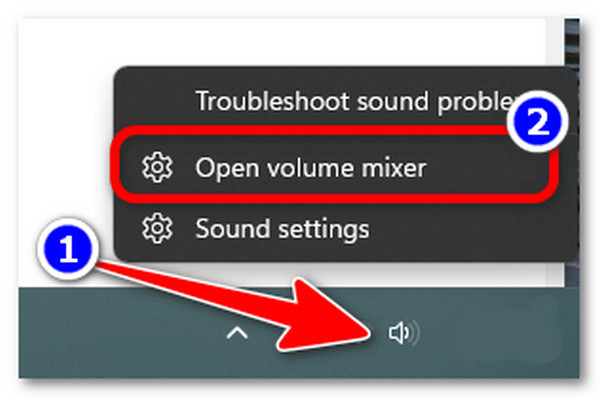
Step 1.Right-click on the "Loudspeaker" icon at the lower right corner of the taskbar of your computer. Then, select the "Open volume mixer" option.
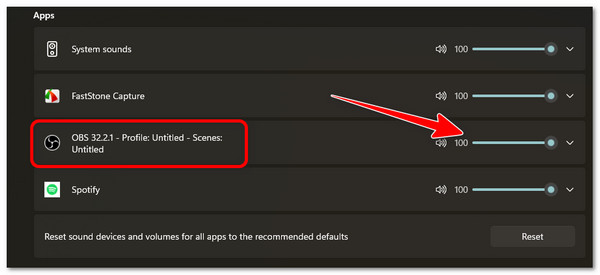
Step 2.Next, check whether the OBS Studio volume slider is set to the lowest level. If it is, adjust it to the volume level you need.
Step 3.After that, check whether this solution was able to fix the OBS audio recording issue.
2. Confirm the Correct Devices Are Selected in OBS
Another solution you can use to solve the OBS not capturing audio issue is to check whether the correct devices are selected within the app itself. If OBS is using the wrong microphone or speaker, it won't record the audio you want.
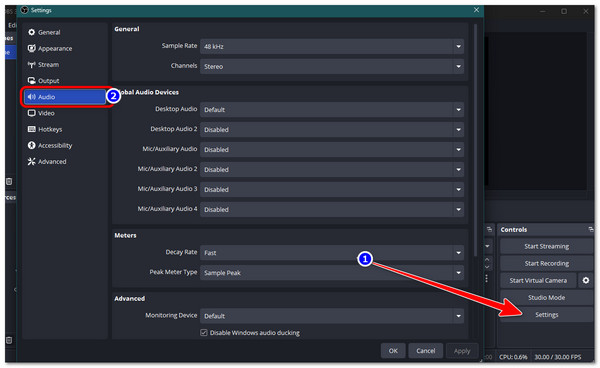
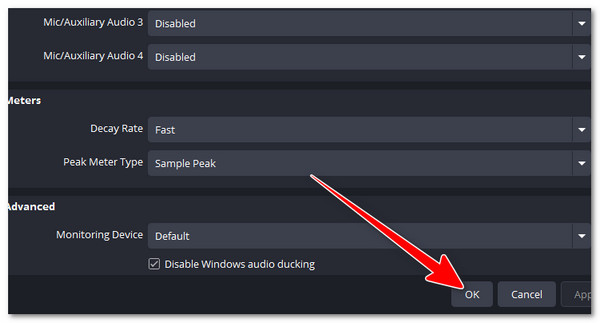
Step 1.Launch OBS Studio and click "Settings" at the bottom-right corner. Then, select the Audio tab from the left panel.
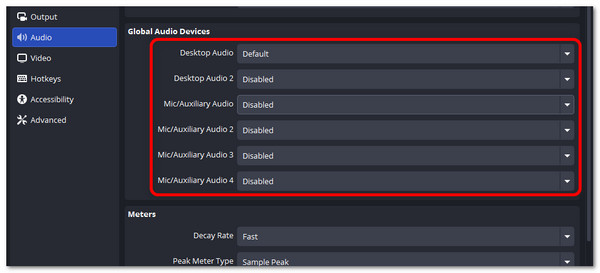
Step 2.Under the "Global Audio Devices" section, make sure the correct devices are selected for Desktop Audio and Mic/Auxiliary Audio.
Step 3.Once done, click "Apply" to save the alterations. Then, make a short test recording to see if it fixes the issue.
3. Check Audio Monitoring (The "I Can Hear It But It's Not Recorded" Fix)
If you can hear the audio while recording, but it doesn't appear in the saved video, the audio monitoring settings may be incorrect. Checking and adjusting these settings can also help you fix the OBS not recording desktop audio issue.
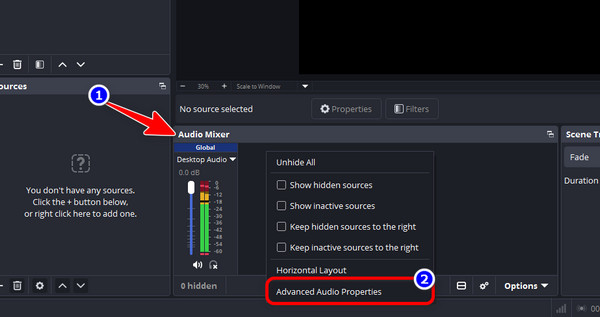
Step 1.Find the "Audio Mixer" panel in your OBS app. Then, right-click anywhere in the panel and select "Advanced Audio Properties".
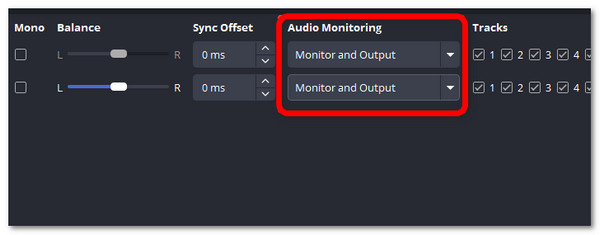
Step 2.Then, under the "Audio Monitoring" column, expand the dropdown, and set it to "Monitor and Output", so OBS can both play and record the audio.
Step 3.After that, check whether it resolves the issue.
4. Check Audio Track Assignment (Advanced Audio Properties)
If you accidentally disabled necessary audio tracks, it could also be the reason why you are experiencing the OBS no audio issue. In that case, you need to check it out.
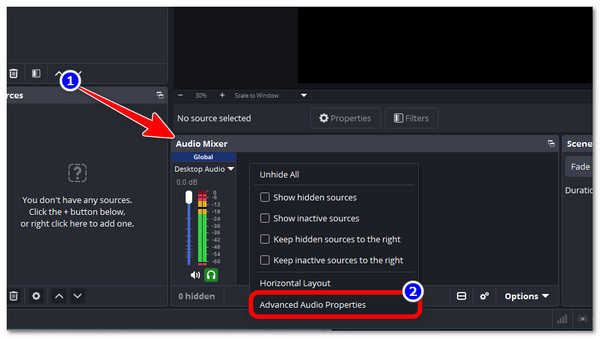
Step 1.Open OBS Studio and head to the "Audio Mixer" section. Then, right-click anywhere in the panel and select "Advanced Audio Properties".
Step 2.In the "Tracks" column, make sure the audio track you want to record is checked so that OBS will include the audio in your saved recording.
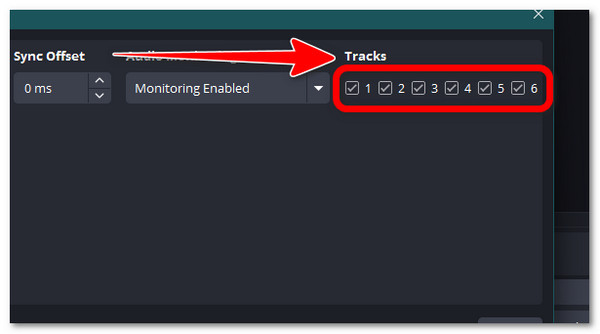
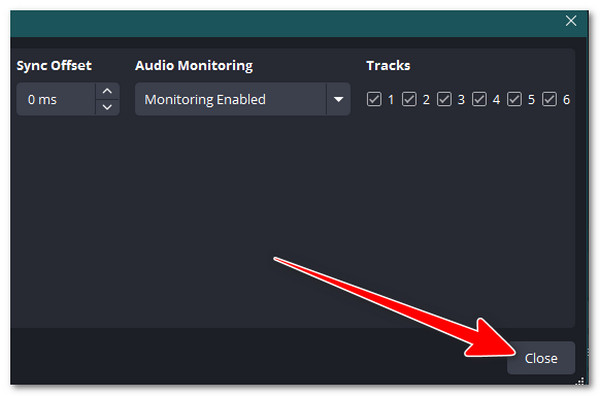
Step 3.Once done, click "Close" to save the changes, then record a short video to check if OBS is now capturing audio correctly.
5. Add or Reconfigure the Desktop Audio Source
Aside from those, if OBS is not recording your computer sounds, the Desktop Audio source may not be added correctly or may be using the wrong device. You need to check and reconfigure it to make sure OBS can capture your system audio.
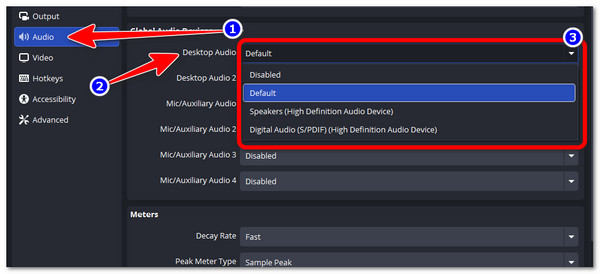
Step 1.On the OBS app, check if "Desktop Audio" appears in the "Audio Mixer" section. If it is missing, open "Settings", select "Audio", and choose the correct device under "Desktop Audio".
Step 2.If the issue continues, click the "+" icon in the "Sources" panel and select "Audio Output Capture". Then, choose your audio device.
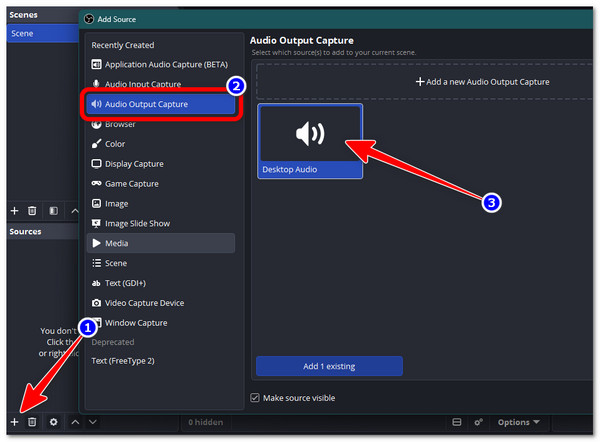
Step 3.After that, play any sound on your computer and check if the audio levels move in OBS. Then, make a test recording to see if it solves the OBS not capturing audio issue.
6. Update or Reinstall Audio Drivers
After all of those tweaks, if the issue still isn't resolved, then it is time for you to consider updating or reinstalling OBS, as the app itself may be the culprit.
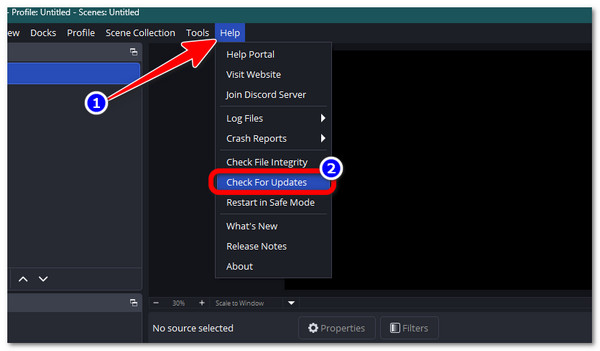
Step 1.Click the "Help" tab in OBS and select "Check For Updates". If there is an available update, update OBS. If not, you will receive a pop-up message saying, "No updates are currently available".
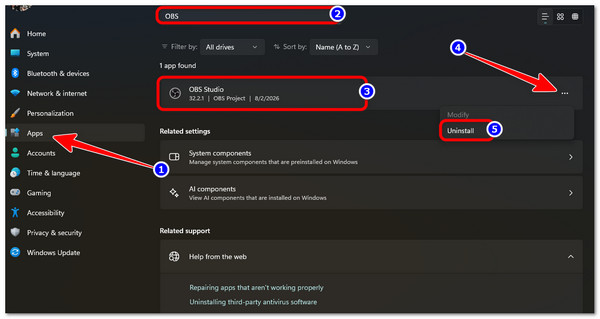
Step 2.If updating OBS won't work, press the "Windows" key and access "Settings". Next, select "Apps", click "Installed apps", search for "OBS", click its "three-dotted" button, and select "Uninstall".
Step 3.Then, reinstall the OBS app and check whether it solves the OBS audio not working issue.
7. Check for Third-Party Audio Software Conflicts
If not OBS, it might be that some of your third-party audio-related software is interfering with OBS and preventing it from recording properly. These apps may change audio settings or take control of your audio devices, which results in you experiencing the OBS not capturing audio issue.
Step 1.Check if you are using audio software such as virtual audio mixers, sound enhancers, or device control apps.
Step 2.Temporarily close these programs and restart OBS Studio.
Step 3.Try recording again and check if OBS is now capturing audio correctly.
8. Run OBS as Administrator
You should also try running OBS as an administrator. By doing this, OBS can acquire the necessary permissions, sufficient system resources, or rights to access your audio devices and properly capture sound. With that, you can fix the OBS Studio not recording audio issue.
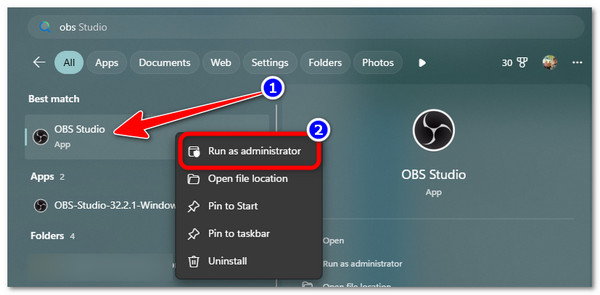
Step 1.Click the Windows key and search for OBS Studio by typing its name right away.
Step 2.After that, right-click it and choose the Run as administrator option from the menu.
Step 3.Once done, try using OBS and see whether the issue is still present.
9. Check Encoding and Bitrate Settings
This issue is similar to having incorrect audio settings in OBS. If the encoder or bitrate settings are not set properly, it will also lead you to experience the OBS not recording audio. It can also lead to recordings having missing or poor-quality audio.
Step 1.Open OBS Studio and go to "Settings", then select "Output" from the left panel.
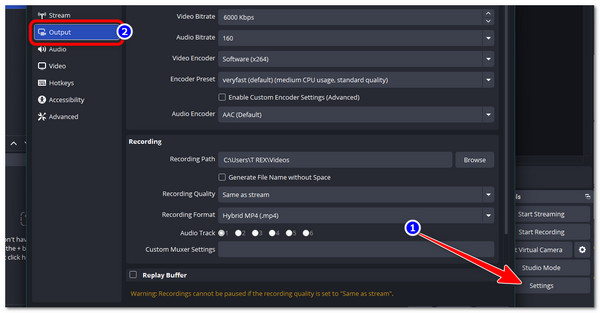
Step 2.After that, head to the "Streaming" section, and set the "Audio Bitrate" to "128" and "Video Bitrate" to "3500".
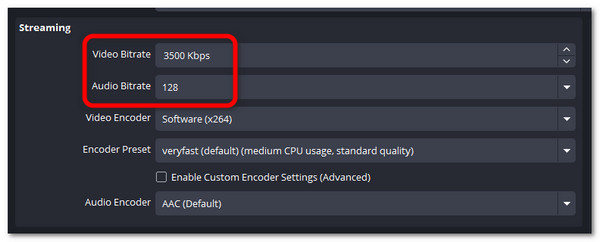
Step 3.Once done, click the OK button in the lower-right corner to save the changes, then proceed to check whether the issue is resolved.
10. Special Case: Capture Card / External Device Audio Missing
If you use a capture card or external audio device, OBS may not record its sound if the device is not set up correctly. Check the device settings to make sure OBS can detect the audio source.
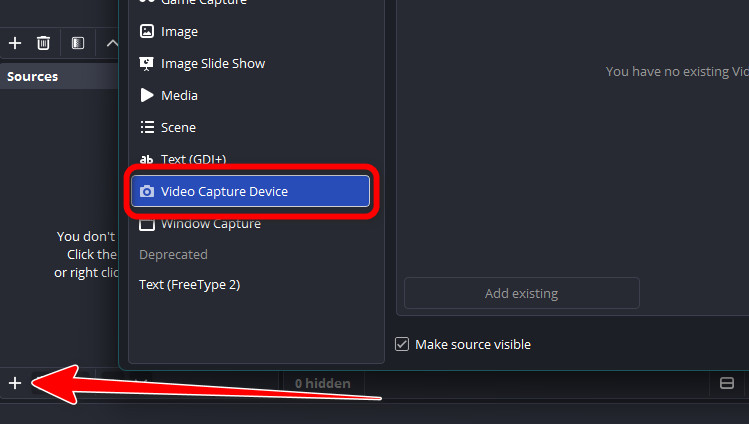
Step 1.Open OBS Studio and make sure your capture card or external device is added to the "Sources" panel. If not, add it as a "Video Capture Device" by clicking the "+" icon.
Step 2.Right-click the device source you added, select "Properties", and make sure the correct option is selected under "Audio Output Mode".
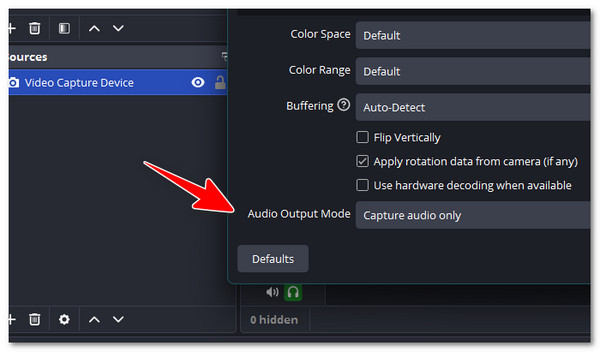
Step 3.Play audio through the device and check if the audio level moves in the "Audio Mixer" panel.
Use OBS Alternative for Easier and Smoother Recording
That's it! Those are the 10 best ways you can execute to fix the OBS not recording audio. Now, if none of those solutions work, you can try to use AnyRec Screen Recorder as an alternative for a much easier and smoother audio recording. This tool supports recording internal and external audio from your computer separately or simultaneously. It lets you record audio content from various sources by simply clicking its Record button. What makes this tool worth trying is that, aside from being easy to use, it also keeps the original audio quality and supports noise removal and echo reduction.
Record audio on your computer from any site or platform with the original quality.
Lets you trim, merge, and convert recorded audio before saving it.
Enables the conversion of audio recordings to ACC, AC3, WMA, and more.
Infused with noise cancellation and audio enhancement for a better output quality.
Secure Download
Secure Download
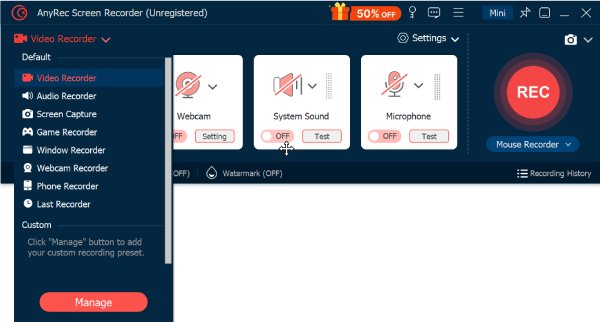
Step 1.Install the AnyRec Screen Recorder tool on your computer and launch it once installed. Next, click the "Recorder" mode dropdown button and select "Audio Recorder".
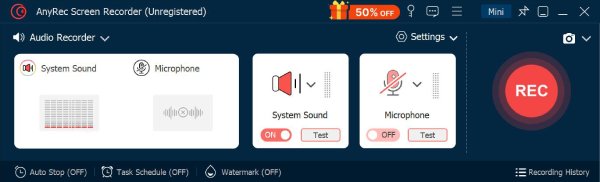
Step 2.After that, toggle on System Sound and Microphone to capture external and internal audio. You can also toggle on only one of them, depending on the audio source you wish to record. Additionally, you can also select your desired input device and volume.
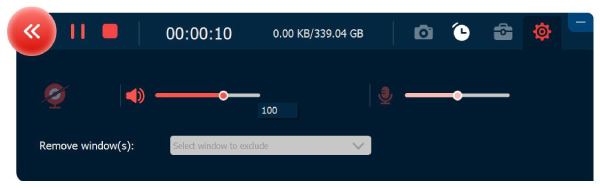
Step 3.Once you are all set, click "REC" to capture the audio. Once done, click "Stop" to save the audio recording.
Conclusion
With those 10 solutions to fix OBS audio not working, you can now record any audio content from your computer through OBS! Just have patience while trying each of them to identify which one works on your end. Now, in case none of those solutions work, you can use the AnyRec Screen Recorder as an alternative. This tool can easily and quickly record any audio content from different sources. Also, it can record either the internal and external audio simultaneously or separately with great quality! Try this one today!
Secure Download
Secure Download
Related Articles
About Our Author